
Introduction to Google Compute Engine
Google Compute Engine (GCE) is a powerful, flexible, and secure option for using virtual machines in the cloud. You can create and manage the lifecycle of virtual machine instances. You can enable load balancing and auto scaling for multiple vm instances, add storage or network storage to it, and manage network connectivity and configuration.
Note: Before you can utilize any resource on GCP, you need to enable its API, if this is the first time you are using this service in your project. You can enable it either by going to ‘APIs and Services’ or it will automatically appears on your console when you go to creating VM page.
Let’s start with creating a simple GCE as HTTP server:
Open Google Cloud Console: Log into your Google Cloud account and navigate to the Google Cloud Console.
Go to Compute Engine: In the console, find the ‘Compute Engine’ section. This is your main area for managing VMs.
Click ‘Create Instance’: In the Compute Engine dashboard, look for a button or link that says ‘Create Instance’ or ‘Create VM’. This starts the process of setting up a new VM.
Configure Your VM:
- General Configuration
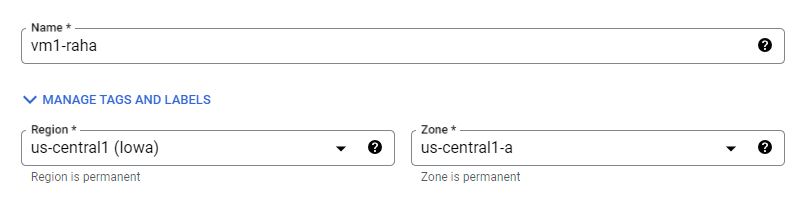
- Name Your VM: Choose a name for your VM. This should be something descriptive and easy to remember.
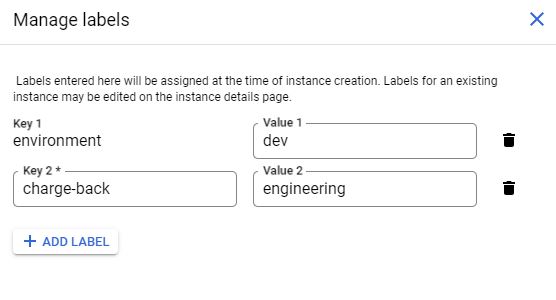
- Labels: Choose as many as lables you want.
- Region and Zone: Select the geographical region and zone where your VM will be located. Closer regions to your users can offer better performance.
- General Configuration

Machine Configuration:
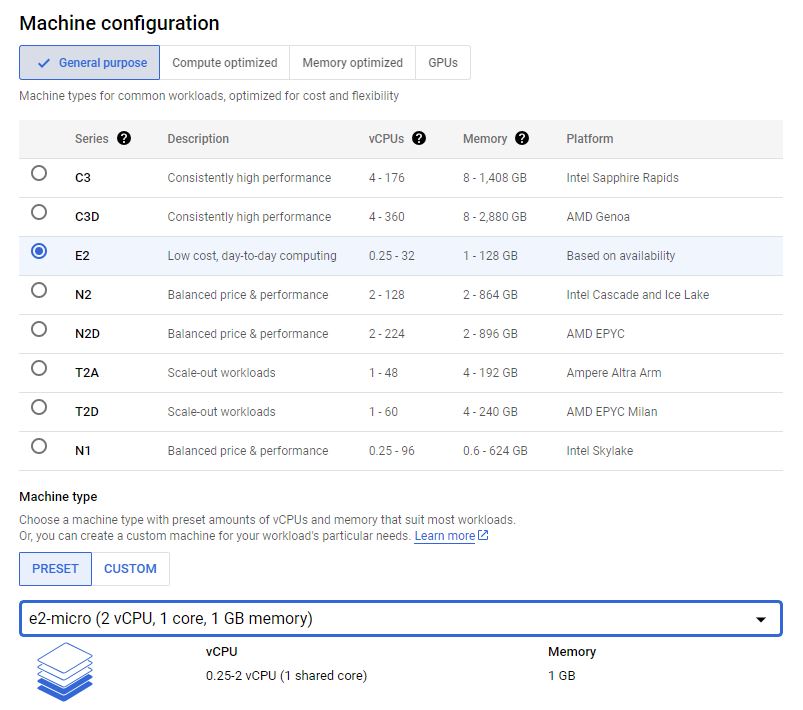
- Machine Type: Select the type of machine based on your needs (e.g., micro, small, standard). This determines the power and resources like CPU and memory.
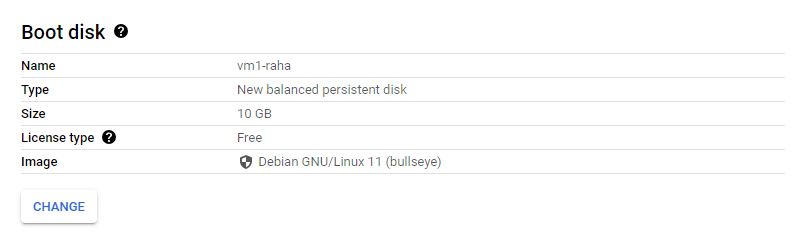
- Boot Disk: Choose an operating system and disk size. Common choices are Linux distributions like Ubuntu or Windows Server.
- Firewall Settings: Enable HTTP and HTTPS traffic if you plan to run a web server.

Create the VM: Once you’re happy with the configuration, click ‘Create’ to launch your VM. It might take a few minutes to initialize.
Connect to Your VM: After the VM is set up, you can connect to it. For Linux VMs, this is usually done via SSH (Secure Shell). Google Cloud provides a built-in SSH client in the browser for easy access.
Managing the VM Instance
- Start, Stop, and Delete: You can start, stop, or delete your VM anytime. Stopping the VM can save costs when not in use.
- Monitoring Usage: Keep an eye on the performance and usage statistics provided in the Compute Engine dashboard.
Advanced Google Compute Engine
Compute Engine Machine Family
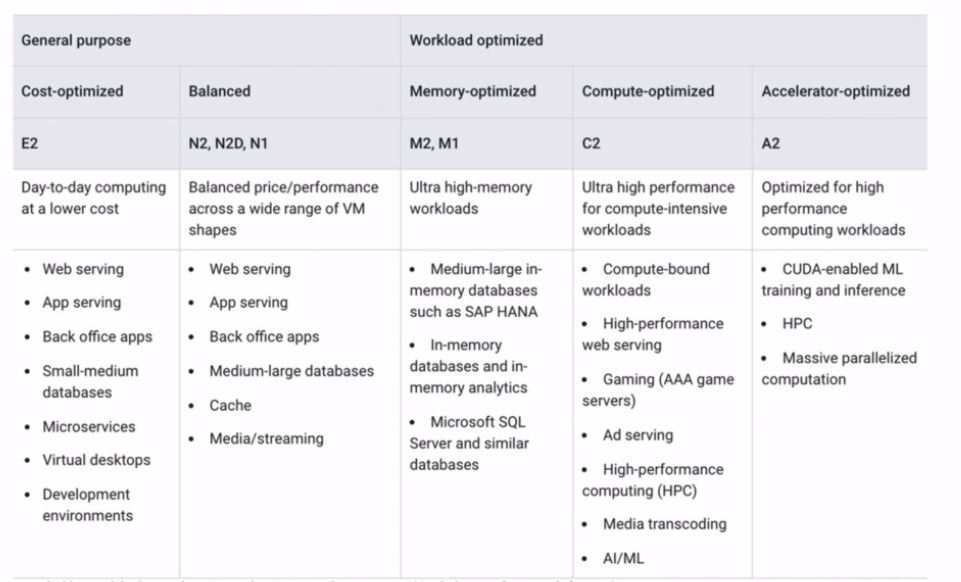
Google Cloud Platform (GCP) offers a wide range of machine types designed to cater to various needs and applications. Google Cloud’s machine family is divided into several categories, each optimized for different workloads and purposes. Let’s break down these categories:
- General-purpose Machines (E2, N1, N2, N2D) Cost-effective and efficient, ideal for small to medium-sized workloads such as: Web and application servers, Small-medium Databases, Dev Environments. Best for a variety of everyday computing tasks. If your workload doesn’t require specialized hardware, start here.
- Memory-optimized Machines (M1, M2) These machines offer the highest memory capacity and are ideal for memory-intensive tasks such as large databases and in-memory analytics.
- Compute-optimized Machines(C2) High-performance machines designed for compute-intensive tasks like gaming servers, scientific modeling, and batch processing. Choose these if your workload involves high CPU usage and demands high-performance processing.
- Accelerator-optimized Machines(A2) Equipped with NVIDIA GPUs, they are ideal for machine learning, 3D rendering, and other GPU-accelerated tasks.
Google Provides a good comparison table for better understanding:
Internal and External IP Addresses
Internal IP addresses are used within the Google Cloud network. They enable communication between Google services, including different VMs within the same project or network. It offers a secure way for services within the same network to communicate. Internal IPs are ideal for communication between VMs in the same project, accessing databases, internal APIs, or for any service that doesn’t require external internet access.
External IPs can be accessed from the internet, making them necessary for hosting web services, external APIs, or any service that requires internet access like a remote SSH access to a VM. Like internal IPs, external IPs can be either static (reserved and unchanging) or ephemeral (assigned to a VM and released back into the pool when the VM is stopped or deleted). By default the external IP addresses are ephemeral.
Static External IP Address:
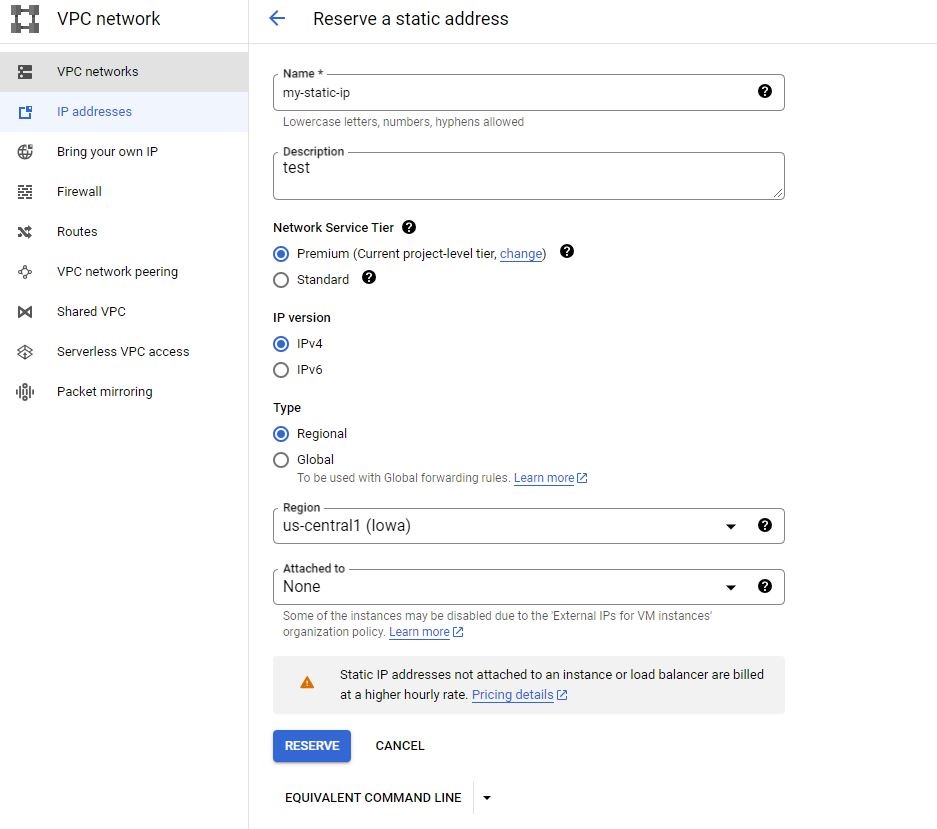
Navigate to the ‘VPC network’ section.and then go to the ‘IP addresses’ and select ‘Reserve External Static IP Address’ by specifying the name and the region. Once reserved, you can assign this IP to a VM instance.
Note: Unlike ephemeral (dynamic) IPs, static IPs can incur costs when reserved, even if they are not actively used. It’s important to release any unneeded static IPs to avoid unnecessary charges.
Confidential VM service
Data in memory is encrypted using a dedicated per-VM instance key, ensuring that it is protected even from privileged access at the hardware or hypervisor level, ensuring that data is protected not only at rest and in transit but also while it is being processed. This service adds protection to your data in-use by keeping memory of this VM encrypted with keys that Google doesn’t have access to.

Container
you can configure VM instances to run containerized applications directly. So rather than specifying an operating system, we can specify a container to run.

Service Account
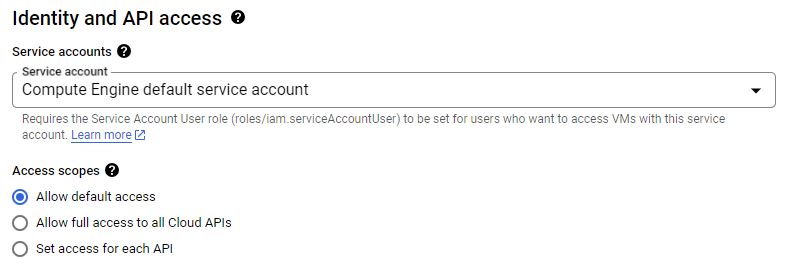
A service account is a special type of Google Cloud account that is used by applications or VM instances, rather than by individual end users. It is intended for service-to-service authentication within Google Cloud services, enabling your applications running on GCE to authenticate and access other Google Cloud services securely. When you assign a service account to a GCE instance, it grants the instance specific permissions to access Google Cloud resources or services, based on the roles attached to the service account.
Boot Disk Type
- Standard Persistent Disks: Best for cost-effective storage needs, suitable for low to moderate I/O operations.
- SSD Persistent Disks: Offer higher performance with low latency, ideal for high I/O operations and intensive workloads.
- Balanced Persistent Disks: Provide a balance between performance and cost, suitable for a broader range of workloads than standard disks.
- Extreme Persistent Disks: Designed for the highest provisioned IOPS and throughput, ideal for the most demanding storage-intensive applications.
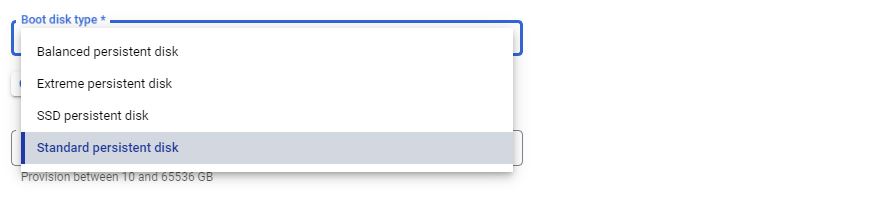
Note: Extreme Persistent Disks don’t support Regoinal and are only Zonal.
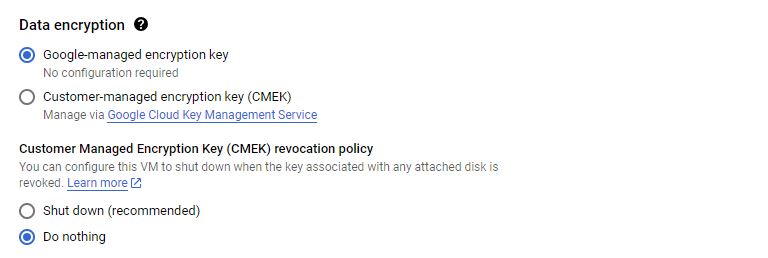
Data Encryption
There are primarily three types of encryption methods for protecting data:
- Google-managed encryption keys (GMEK): The default option, where Google manages the encryption keys. This is transparent and requires no additional setup from the user.
- Customer-managed encryption keys (CMEK): Offers more control, as you manage the encryption keys using Cloud Key Management Service (KMS). This is suitable for those who need to meet specific compliance requirements.
- Customer-supplied encryption keys (CSEK): In this model, you provide and manage your own encryption keys. This offers the highest level of control over your encryption keys. Not only provide the key but also can store it anywhere outside Google Cloud that you prefer.
Startup Script
Startup script is a powerful feature that allows you to run automated commands or software scripts when your virtual machine (VM) instance starts up. Startup scripts are shell scripts (like bash scripts in Linux or batch/PowerShell scripts in Windows) that are executed automatically as part of the VM’s boot process. Common use cases are:
- Installing Software: automatically install necessary applications, packages, or updates.
- Configuration Changes: Set system configurations, update environment variables, or modify network settings.
- Running Custom Applications: Start web servers, initiate background tasks, or launch other services.
NOTE Your script should be idempotent, meaning running it multiple times won’t have unintended consequences.
Example:
#!/bin/bash
apt update
apt -y install apache2
echo "Hello world from $(hostname)" > /var/www/html/index.html
Instance Template
In Google Cloud Compute Engine (GCE), an instance template is a resource that you can use to create VM instances and managed instance groups with a predefined set of properties. These templates provide a way to create VM instances consistently and efficiently, ensuring that each instance you create has the same configuration, without the need to set them up manually each time.
Advantages of Using Instance Templates
- Consistency and Efficiency: Ensure all instances are created with the same configuration, reducing manual setup errors and saving time.
- Scalability: Vital for managing instance groups, especially for auto-scaling and load balancing scenarios.
- Reusability: Templates can be used multiple times to create instances or groups, making them highly reusable.
- Versioning and Rollback: You can keep different versions of a template, which is useful for rolling back to a previous configuration if needed.
Use Cases for Instance Templates
- Managed Instance Groups: Perfect for creating managed instance groups for applications that need to scale based on demand.
- Stateless Applications: Ideal for stateless applications where each instance is interchangeable.
- Testing and Development: Ensure a consistent environment across multiple development and testing scenarios.
- Disaster Recovery: Quickly create instances in a different region during a disaster recovery scenario.
Note: Updating an instance template in Google Cloud Compute Engine (GCE) isn’t directly possible because instance templates are immutable. Once created, they cannot be modified. This immutability ensures consistency and stability, as any changes to a template could have unintended consequences on the instances created from it. However, there are ways to effectively “update” a template by creating a new version or a completely new template based on the changes you need.
Custom Image
Custom images are particularly useful when you need to deploy VMs with a specific configuration, software, or set of applications that differ from the standard images provided by Google Cloud. A custom image is a persistent disk image that you create and use as a template to start up new virtual machine (VM) instances.
Key Features of Custom Images
- Preconfigured Setup: Custom images include the operating system, software, and configurations you’ve installed. This allows for consistent and rapid deployment of new VMs with the same setup.
- Efficiency and Time-Saving: They eliminate the need to manually configure each new VM instance. Once you create a VM from a custom image, it will have all the required settings and software out of the box.
- Control and Compliance: Custom images can be tailored to meet specific security, compliance, and governance requirements.
- Image Sharing: You can share custom images across different projects within your Google Cloud account
- Storage Costs: While custom images are convenient, remember that storing these images in Google Cloud Storage incurs costs based on the size of the image and the duration of storage.
- Image Source: Can be created from a VM instance, a persistent disk, a snapshot, another image, or a file in the cloud storage.
- Deprecating an Image: When an image is identified as outdated, you can mark it as deprecated within GCE. This action doesn’t delete the image but serves as a clear indicator that it should no longer be used for new VM deployments.
Sole-Tenant Nodes
Sole-tenant nodes in Google Cloud Compute Engine (GCE) offer a dedicated hosting solution where your virtual machines (VMs) run on physical servers that are exclusively allocated to your use. This feature provides physical isolation from other customers’ VMs, which can be crucial for meeting specific compliance, regulatory, or business requirements.
Use Cases for Sole-Tenant Nodes
- Regulated Industries: Useful for industries like finance and healthcare, where regulations might dictate physical isolation of computing resources.
- Sensitive Workloads: For workloads handling sensitive data where additional isolation and security are paramount.
- Licensing Constraints: Some software licenses mandate specific hardware usage, which can be managed effectively with sole-tenant nodes.
Setup Sole-Tenant Nodes
Setting up sole-tenant nodes involves creating a node group with a specific node template and using affinity labels to direct VM instances to these nodes.
Creating a node group: Start by creating a sole-tenant node group. Assign it a name and select a region.
Configuring the Node Template: Next, create a node template. This is where you define the type of node you need (e.g., N1, N2), and add options like SSDs or GPU accelerators. And also you set the Affinity labels.
Setting Affinity Labels: Affinity labels are crucial. They ensure that when you create a new VM instance intended for this node group, it’s deployed to the correct node.
Creating VMs for the Node Group: To create VMs for this node group, go to the VM instances creation section. Under the management, security, and sole tenancy settings, select sole tenancy and specify the affinity label.
Define Affinity Rules: When creating a VM, specify affinity or anti-affinity rules in your VM instance’s settings. These rules reference the labels you’ve assigned to your nodes. When you set a node affinity label that matches your node group, any new VM instance will be created on the designated sole-tenant node, ensuring dedicated hardware.
Example of using Affinity Labels: Imagine your Label is:
"department":"finance"So when you are creating your VM under Sole Tenancy/Node Affinity Labels you add:department:In:finance

VM Manager
VM Manager in Google Cloud Compute Engine (GCE) is a suite of tools designed to simplify the management and maintenance of large fleets of VMs. It provides centralized and automated management capabilities that enhance the efficiency, security, and compliance of your VM instances.
Instance Groups
Google Instance Groups, are collections of VM instances that can be managed as a single entity and having a similar lifecycles as one unit. There are two types of instance groups in Google Cloud: Managed Instance Groups (MIGs) and Unmanaged Instance Groups.
Managed Instance Groups (MIGs)
MIGs are identical VMs that are created by an Instance Template. MIGs can be either stateful or stateless, defining how they handle instance states:
- Stateful MIGs: Designed to preserve the unique state of each instance in the group. This includes instance names, attached persistent disks, and specific metadata across VM restarts, recreation, auto-healing, and updates. Stateful MIGs are useful for applications where each instance needs to maintain its identity or specific disk data, like databases or legacy applications, and also batch processing with checkpoints.
- Stateless MIGs: In a stateless MIG, instances are considered interchangeable. When an instance is recreated due to auto-healing or updates, it doesn’t retain any unique identity or state from before its recreation. Stateless MIGs are ideal for applications where each instance can handle similar tasks, like web servers in a load-balanced setup, or batch processing of queued work.
MIGs Features
- Automatic Management: MIGs manage the creation and deletion of VM instances automatically. They ensure that the number of instances in the group matches the number defined in the group’s settings.
- Auto-Scaling: MIGs can automatically scale the number of instances in the group based on current load, ensuring efficient resource utilization.
- Auto-Healing: If an instance becomes unhealthy, the MIG will automatically recreate the instance to maintain high availability.
- Load Balancing: MIGs are typically integrated with Google Cloud Load Balancing to distribute traffic evenly across all instances in the group.
- Multi-Zone Deployment: MIGs can be configured to span multiple zones within a region, increasing the availability and resilience of applications.
- Managed Releases: You can use different deployment strategies to update your application to different versions without downtime.
Creating a Stateless Managed Instance Group
Create an Instance Template (It is mandatory for MIGs)
Select “Instance Groups"
Create a New Instance Group
Set Group Type
Configure the MIG
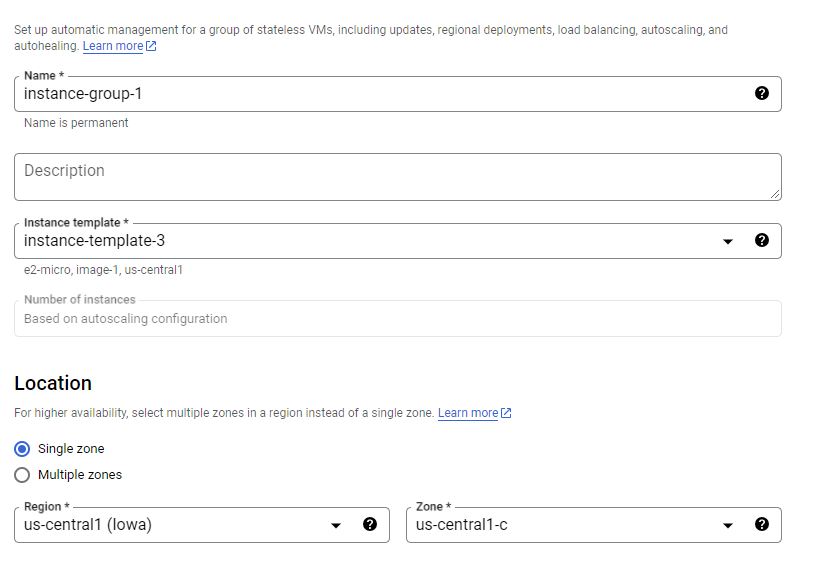
- Name: Give your MIG a descriptive name
- Instance Template: Select the instance template you created earlier.
- Location: Select whether the group should be a single-zone or a regional (multi-zone) group.
- Initial Group Size: Specify the number of instances you want to start with. Or if you configure the auto scaling this will be based on minimum instances of auto scaling configuration.
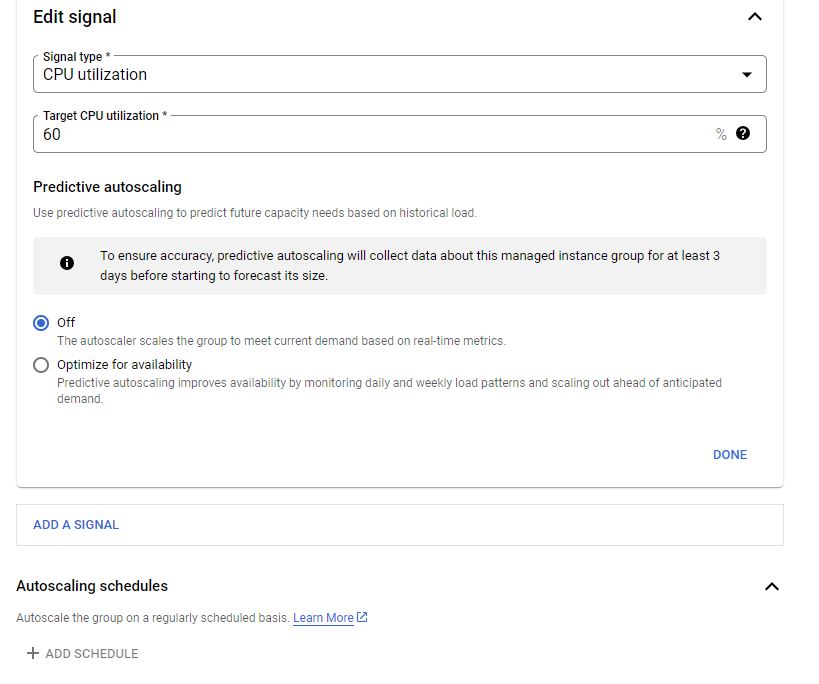
- Autoscaling (Optional): If desired, configure autoscaling based on metrics like CPU utilization, load balancing capacity, Or any other metrics from Google Monitoring tool which is called Stack Driver.
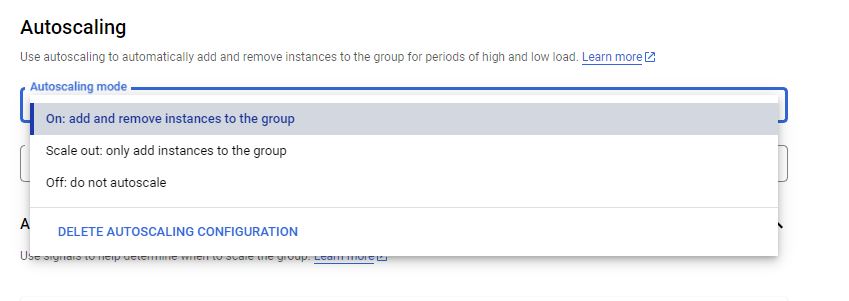
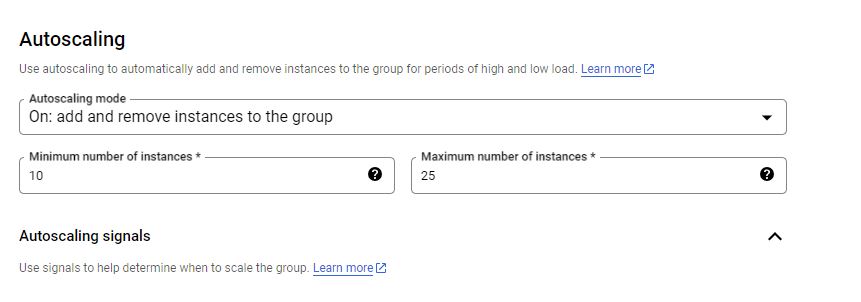
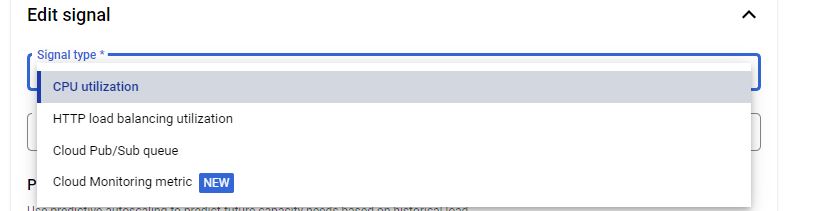
Note: You can also configure Predictive scaling. It uses historical load data and machine learning to predict future demand and preemptively scales the number of instances in the group. This predictive approach ensures that the necessary resources are available ahead of anticipated load increases, improving performance and responsiveness. Predictive scaling is particularly useful for workloads with predictable patterns, allowing MIGs to efficiently handle upcoming demand spikes without waiting for real-time metrics to trigger a scale-out action.
Another option is Autoscaling schedules which allow you to define specific times when the group should automatically scale in or out. This feature is useful for workloads with predictable changes in load at certain times, like increased website traffic during business hours or batch processing jobs overnight.
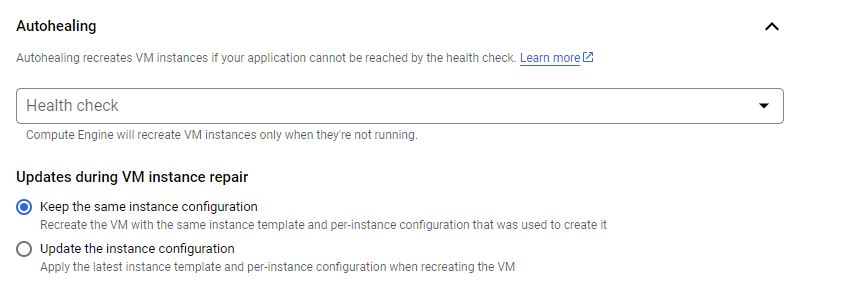
- Autohealing (Optional): Set up health checks to automatically recreate instances that are not healthy. Auto-healing is a feature that enhances the reliability and availability of your applications. It relies on health checks that regularly verify the health of instances in the group. If an instance is found to be unhealthy (failing the health check), the MIG automatically recreates that instance. You can configure health checks to suit your application’s needs, specifying parameters like check intervals and response timeouts.
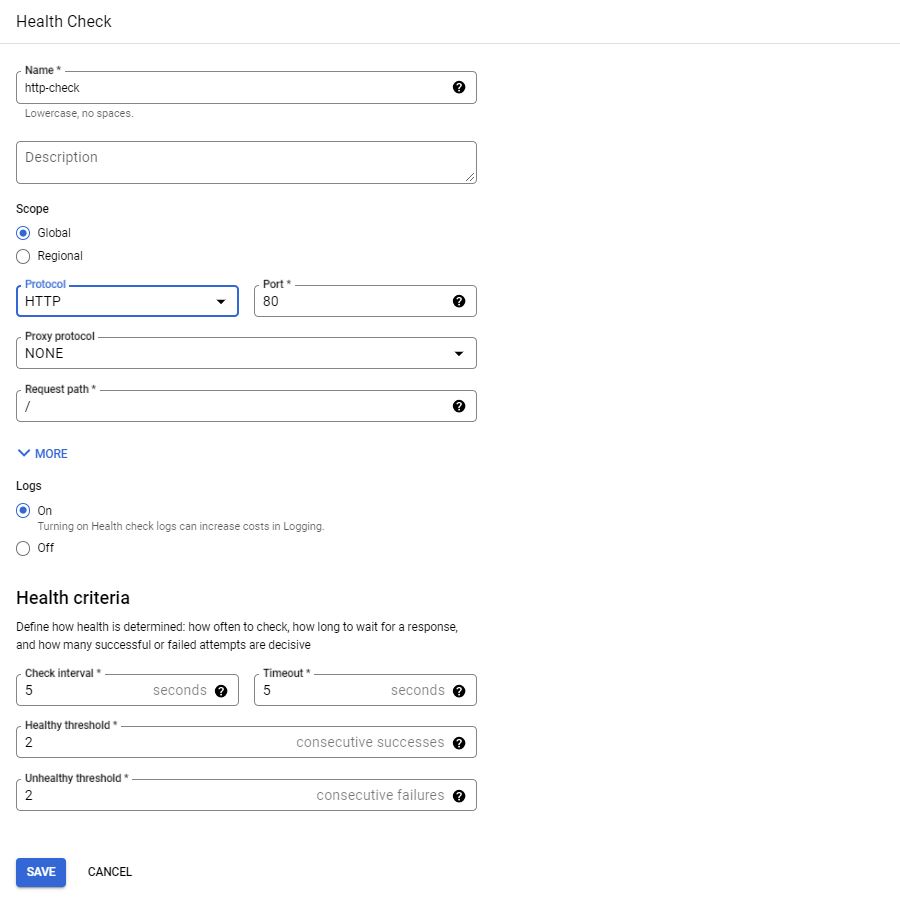
The “initial delay” refers to the time period that the auto-healing process waits before it starts checking the health of a newly created or restarted instance. This delay allows sufficient time for the instance to boot up and for applications to fully start running before health checks begin. Setting an appropriate initial delay is crucial to prevent the auto-healing mechanism from mistakenly concluding that a slowly starting instance is unhealthy and unnecessarily recreating it.

- Additional Settings: Configure any other settings like named ports or distribution policies as required.
Initialization Period formerly known as Cool Down Period: It represents a specific amount of time during which the autoscaling process should not make additional scaling decisions after a scaling event (either scaling up or down) has occurred. It allows the system to stabilize before another scaling decision is made.

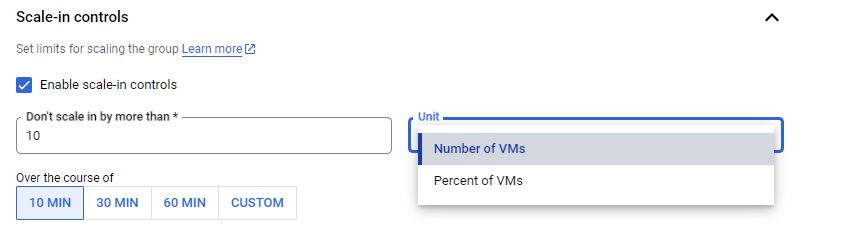
Scale In Control: Scale-in control is a feature designed to provide more control over the scale-in (reduction) process of the instance group. It’s particularly useful for managing how and when instances are removed during autoscaling down operations.
Updating a Managed Instance Group
MIGs offer several release and deployment strategies that enable you to update and manage your VM instances efficiently. These strategies are crucial for maintaining availability and performance while rolling out changes. Here’s an overview of the key release and deployment strategies in MIGs:
- Rolling Update: Rolling updates allow you to update instances in your MIG incrementally. This approach minimizes downtime and ensures that a portion of your fleet is always available and serving traffic.
- Canary Update: Canary updates are a specialized form of rolling updates where changes are first rolled out to a small subset of instances (the “canaries”). This strategy is used to test new releases under real-world conditions with minimal risk.
- Rolling Restart/Replace: A subset of instances is restarted or replaced at a time, rather than all at once, maintaining the service’s overall availability. In this case there is no change in the template, you need to either restart or replace the existing VMs with new ones using the same tempalet.
What to consider for Updating MIGs
- Specify a new template
- (Optional) You can specify a template for canary testing
- Specify how you want to update to be done
- When should the update happen?
- “Proactive/Automatic” updates start immediately, updating all instances concurrently.
- “Opportunistic/Selective” updates occur when the instance group is resized or when instances are terminated, which may be a better choice for non-urgent updates.
- How should the update happen?
- Maximum Surge: Maximum Surge configures how many new instances can be created above its target size during an automated update. For instance, if you set Maximum Surge to 2, the MIG uses the new instance template to create up to 2 new instances above your target size.
- Maximum Unavailable: How many instances can be offline during the update?
- When should the update happen?
Unanaged Instance Groups
Unmanaged Instance Groups are collections of individual, independently Virtual Machine (VM) instances. Unlike Managed Instance Groups (MIGs), which offer automatic scaling, auto-healing, and other management features, unmanaged instance groups require manual oversight and intervention for scaling and maintaining instances. You are responsible for manually adding and removing VM instances to and from the group. The group does not automatically adjust its size or replace unhealthy instances.
- Heterogeneous Groups of VMs
- Does not support Instance Group Templates
- No support of Auto Scaling, Load Balancing, Rolling Updates
Use Cases
What unmanaged instance groups are primarily useful for is for supporting legacy clusters that are maybe running in an on premise situation that you want to bring into the cloud. You want to be able to treat that as a single logical unit from a management perspective, but you don’t need any of the sort of features of managed instance group like the auto scaling load balancing and use of templates. So unmanaged instance group primarily for legacy applications, you’re migrating in.



Use the share button below if you liked it.
It makes me smile, when I see it.